How to Fix 403 Forbidden Error on Google Chrome?

how-to-fix-403-forbidden-error-on-google-chrome
Table of Contents

Have Any Idea or Project in Your Mind? Call Us or Schedule an Appointment!

To fix 403 Forbidden Error; Clear browser cache and cookies, disable extensions, flush DNS cache, check URL correctness, and ensure server-side permissions are properly configured.

Some Simple & Instant Result Steps are:

Remove Website Cookies and Cached Data

Old or corrupted browser data stored for a specific website can often cause a 403 Forbidden Error.
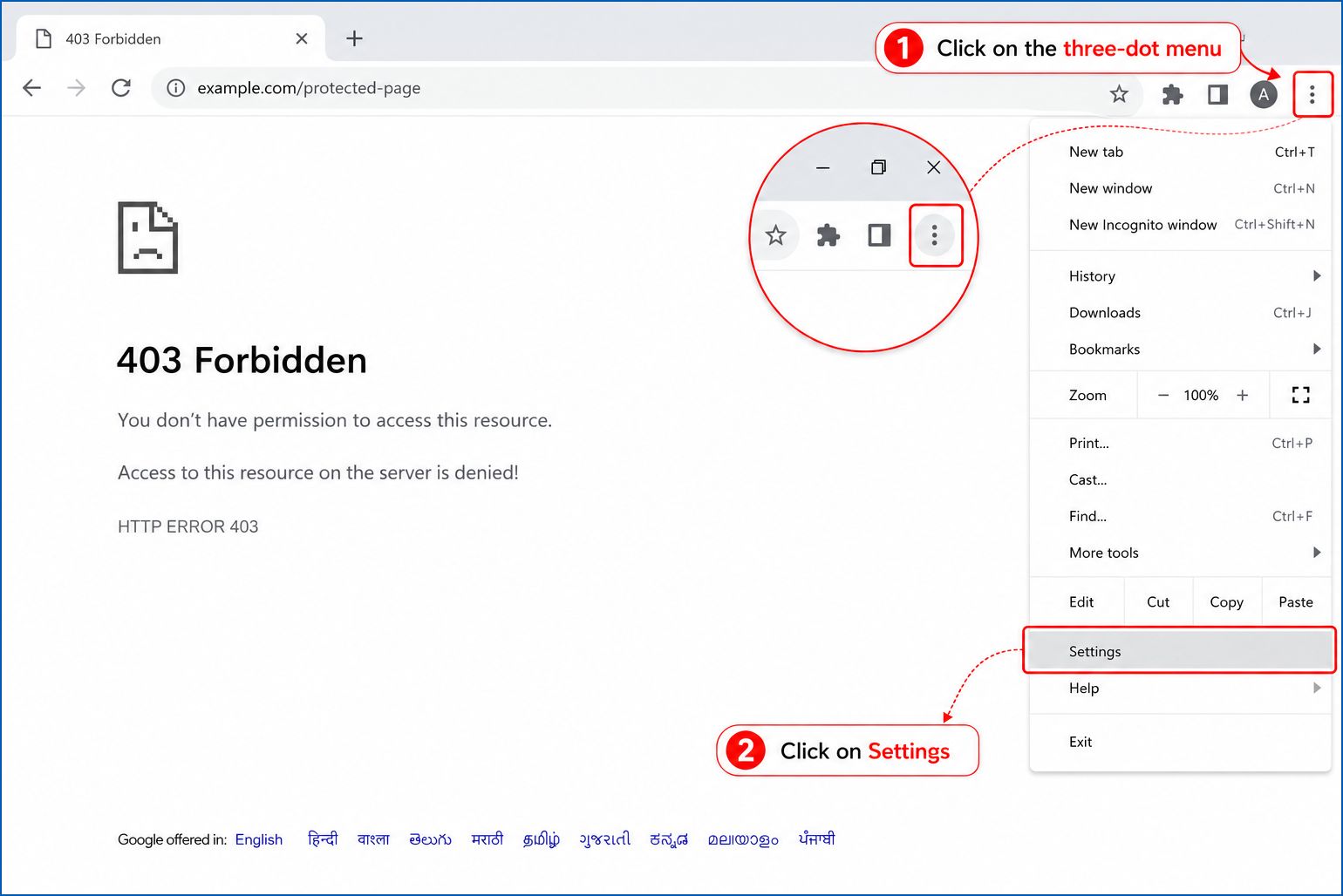
  • In the upper-right corner of Google Chrome, click the three-dot menu and open Settings.

in-the-upper-right-corner-of-google-chrome-click-the-three-dot-menu-and-open-settings

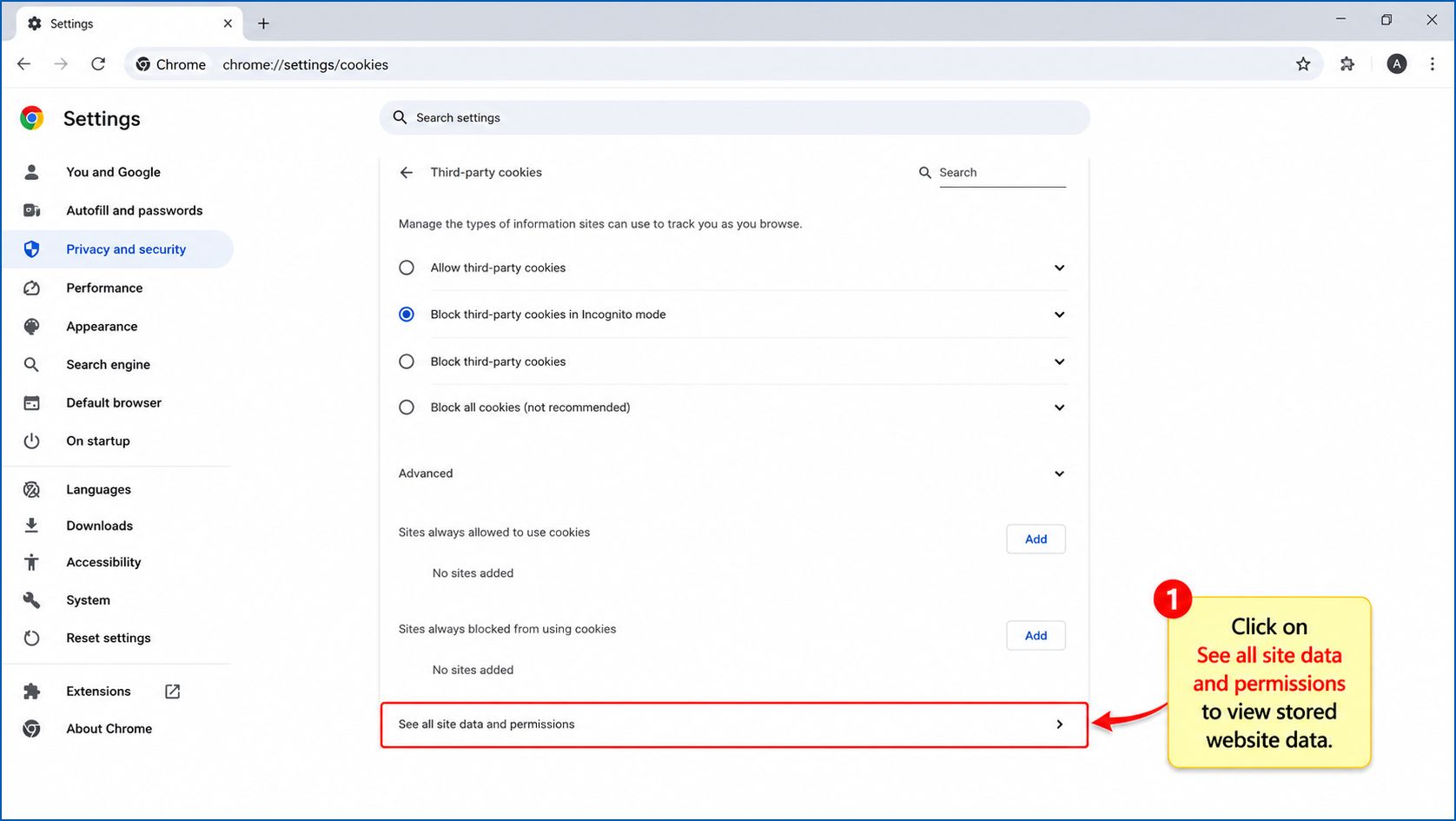
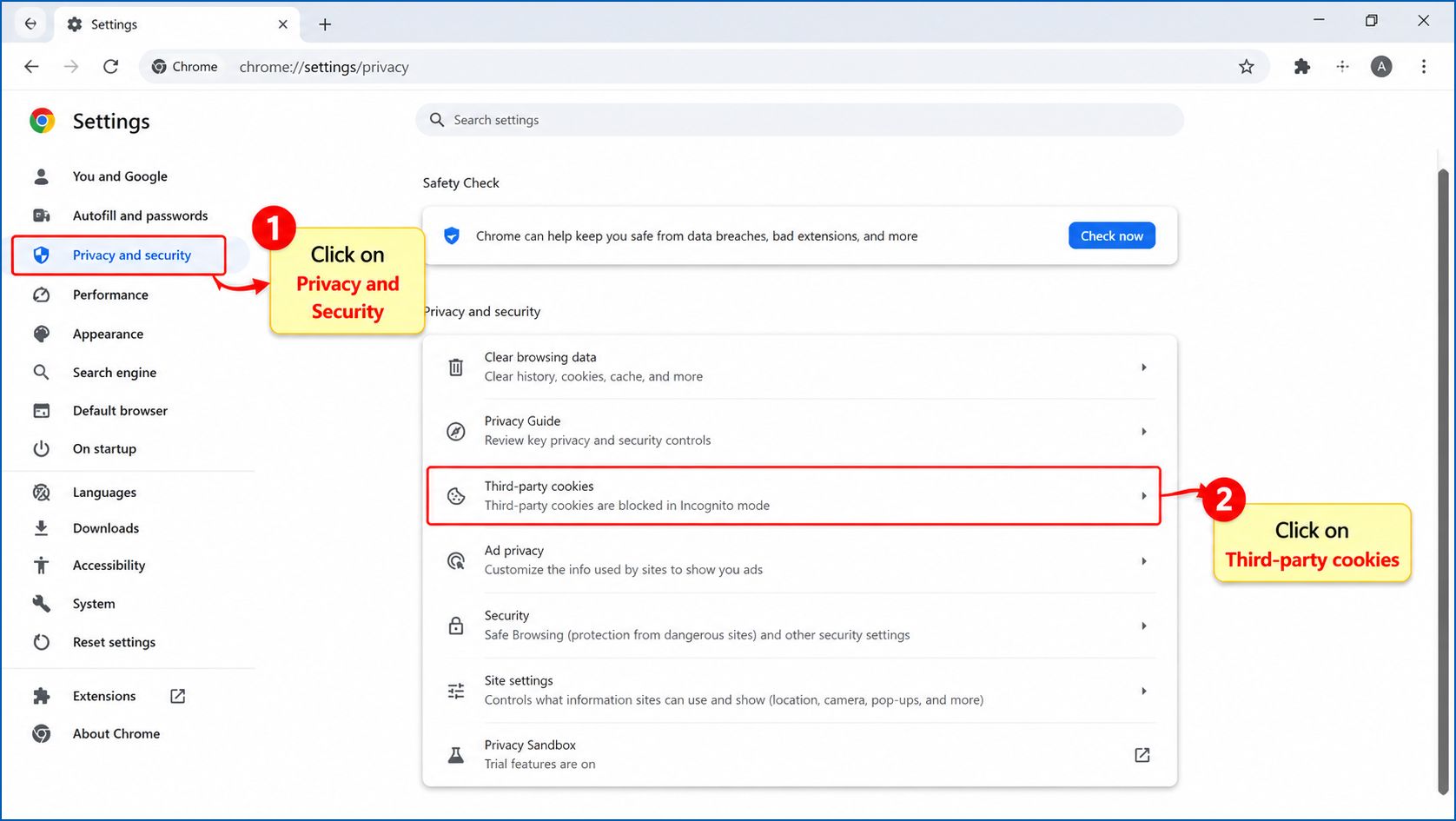
      • Navigate to Privacy and Security > Third-party cookies.

navigate-to-privacy-and-security-third-party-cookies

      • Click on See all site data and permissions to view stored website data.

click-on-see-all-site-data-and-permissions-to-view-stored-website-data

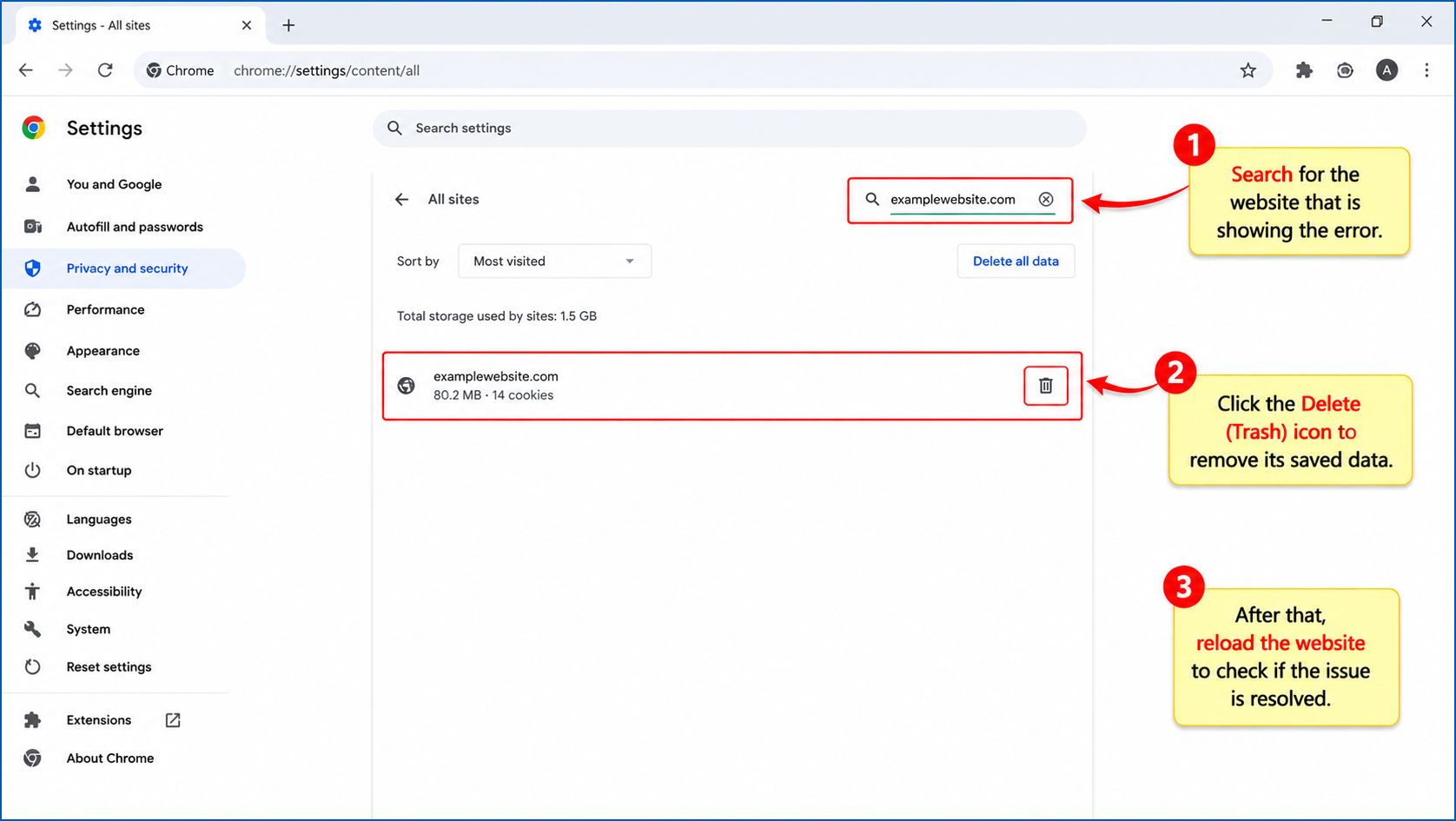
      • Search for the website that is showing the error, then click the Delete (Trash) icon to remove its saved data. After that, reload the website to check if the issue is resolved.

search-for-the-website-that-is-showing-the-error-then-click-the-delete-trash-icon-to-remove-its-saved-data

Check in Incognito Mode and Turn Off Extensions

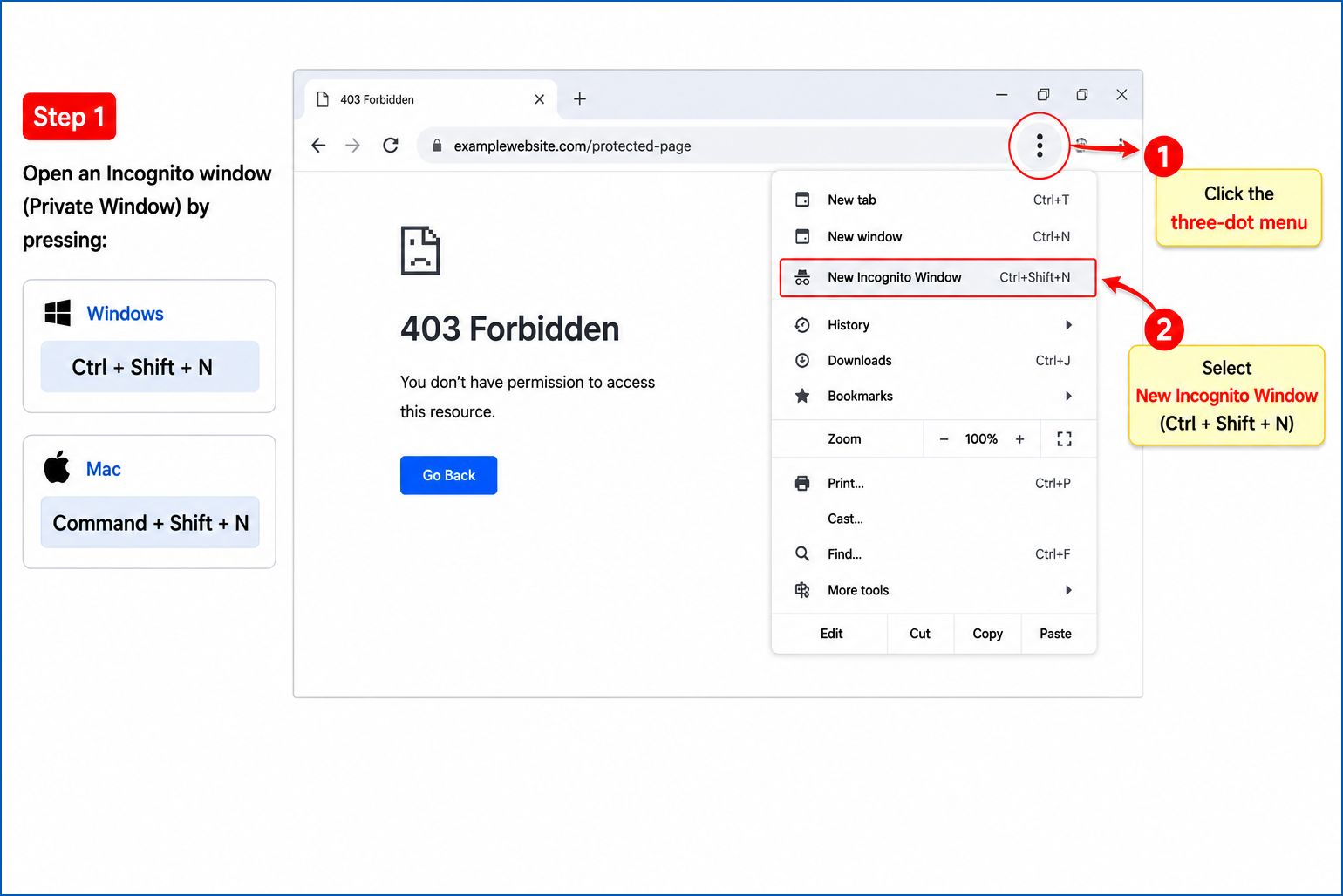
      • Open an Incognito window (Private Window) by pressing Ctrl + Shift + N (Windows) or Command + Shift + N (Mac).

open-an-incognito-window-private-window-by-pressing-ctrl-shift-n-windows-or-command-shift-n-mac

      • Now try accessing the website again. If it loads properly, it means a browser extension is likely causing the issue.
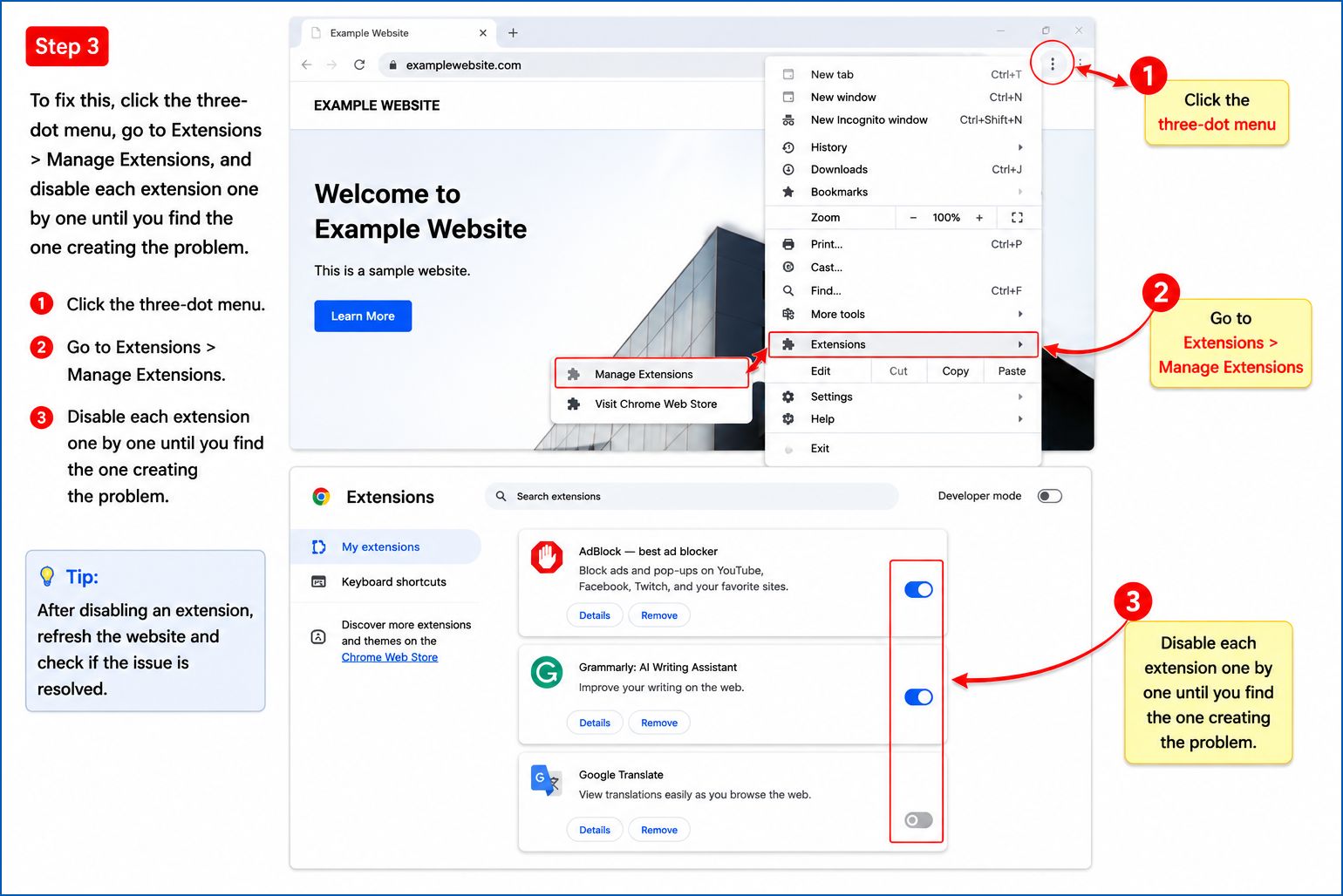
      • To fix this, click the three-dot menu, go to Extensions > Manage Extensions, and disable each extension one by one until you find the one creating the problem.

to-fix-this-click-the-three-dot-menu-go-to-extensions-manage-extensions-and-disable-each-extension-one-by-one-until-you-find-the-one-creating-the-problem

Clear and Reset Your DNS Settings

If your system’s local DNS cache becomes corrupted, it can prevent proper connection to websites.
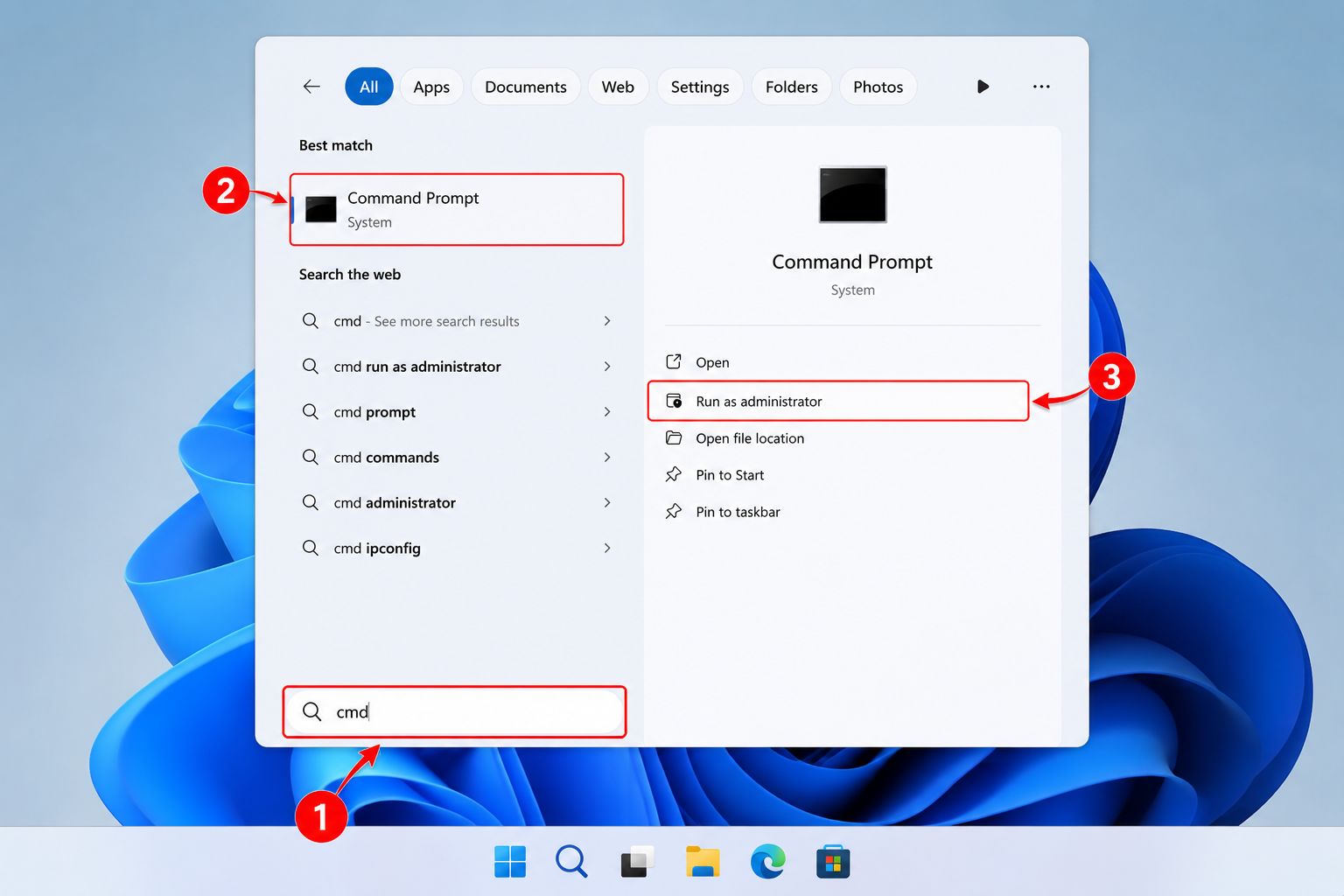
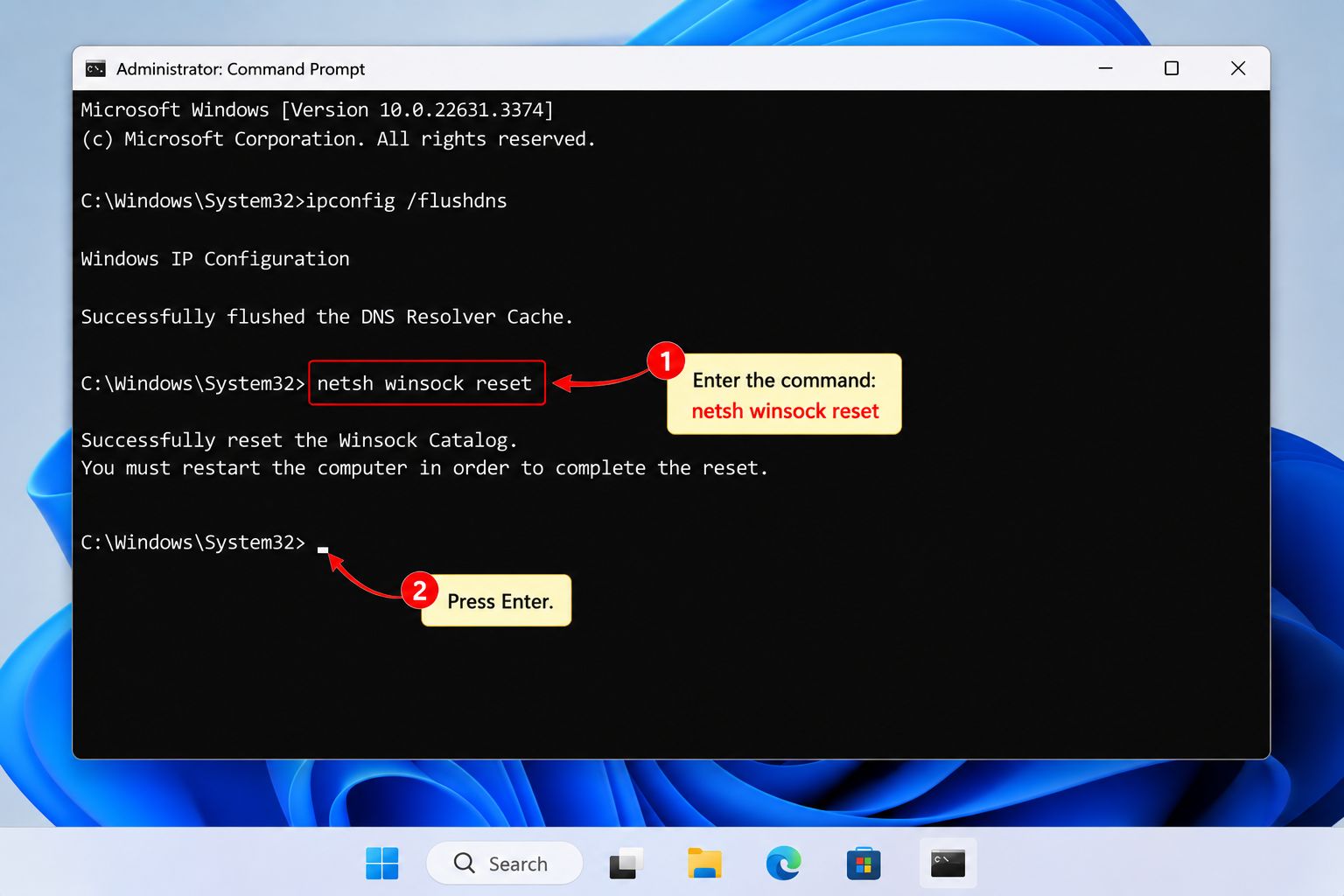
      • Open the Windows search bar, type CMD, then right-click on Command Prompt and choose Run as administrator.

open-the-windows-search-bar-type-cmd-then-right-click-on-command-prompt-and-choose-run-as-administrator

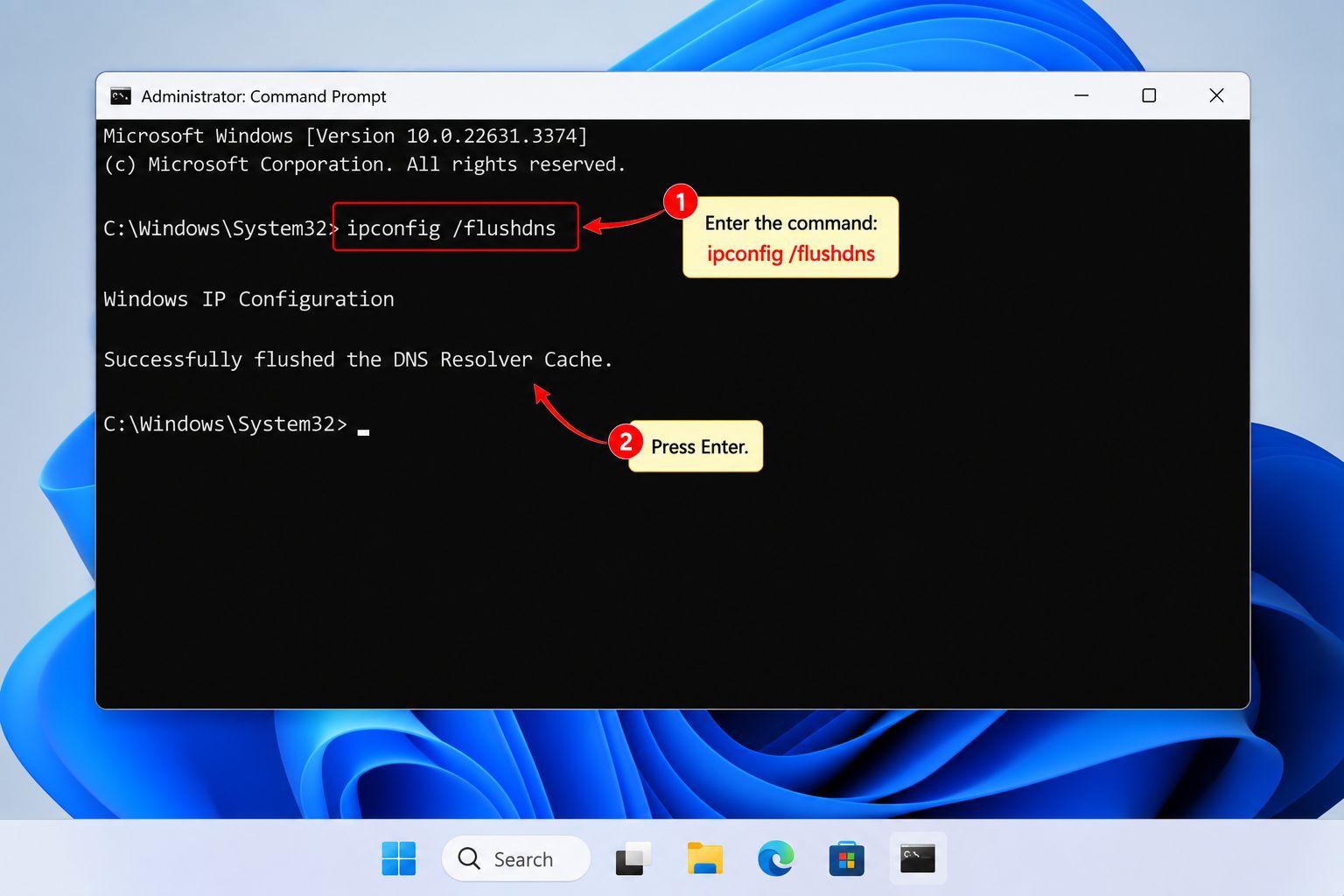
      • Now enter the command: ipconfig /flushdns and press Enter.

now-enter-the-command-ipconfig-flushdns-and-press-enter

      • After that, enter: netsh winsock reset and press Enter again.

after-that-enter-netsh-winsock-reset-and-press-enter-again

Finally, restart your computer and try accessing the website again to check if the issue is resolved.

The 403 Forbidden Error is one of the most frustrating issues users face while browsing the internet. It usually appears when a webpage or resource is not accessible, even though the server is reachable. Unlike other errors, this one clearly indicates that your request was understood by the server, but it is refusing to allow access.

In simple terms, this error is a HTTP status code that tells you that permission is denied. It does not always mean something is broken on your side. It can also be caused by server settings, security rules, or restrictions placed by the website owner.

In this detailed guide, you will learn what causes the 403 error and how to fix it step-by-step in Google Chrome.

What is a 403 Forbidden Error?

A 403 Forbidden Error is a HTTP status code that means the server understood your request but is refusing access to the page or resource. It usually happens due to server-side permissions, security rules, or IP restrictions, and indicates a lack of authorization rather than a missing page or browser issue.

This is different from a 404 error (page not found). In a 403 error, the page exists, but you are not allowed to view it.

This issue can be caused by multiple reasons, such as:

      • Incorrect permissions on the website
      • Security restrictions
      • IP blocking
      • Browser-related issues

It is often linked with website access issues and may affect both users and website owners.

Common Causes of 403 Forbidden Error

Before fixing the issue, it is important to understand what causes it. Some of the most common reasons include:

1. Browser Cache and Cookies Issue

Sometimes, corrupted cache or cookies in Chrome create a client-side error, blocking access to websites.

2. Incorrect File Permissions

If the website files are not configured properly, it leads to a file permissions error that restricts access.

3. Server-Side Restrictions

The website may have strict server-side permissions or security rules that block certain users.

4. IP Blocking or Firewall Rules

Some websites block specific IP addresses due to security reasons or geo-restrictions.

5. Misconfigured .htaccess File

A .htaccess file error in Apache servers can cause access denial.

6. Hosting or Server Issues

Sometimes, a website hosting issue or a misconfigured server leads to restricted access.

How to Fix 403 Forbidden Error on Google Chrome

Now let’s go through all the effective solutions step-by-step.

1. Refresh the Page and Check URL

Sometimes the error is temporary. Refresh the page or check if the URL is correct. A small typo can lead to a directory access denied response.

2. Clear Browser Cache and Cookies

Old or corrupted cache data can cause access problems.

Steps:

      • Open Chrome Settings
      • Go to Privacy and Security
      • Click Clear Browsing Data
      • Select Cookies and Cached Images
      • Restart Chrome

This often fixes many website configuration issues and related errors.

3. Try Incognito Mode

Open the website in Incognito Mode. If it works, the issue is likely caused by extensions or stored cookies.

4. Disable Browser Extensions

Some extensions interfere with website loading and create a conflict with server security rules.

Steps:

      • Go to Extensions in Chrome
      • Turn off all extensions
      • Enable one by one to find the issue

5. Flush DNS Cache

DNS cache may contain outdated records.

Steps:

      • Open Command Prompt
      • Type: ipconfig /flushdns
      • Press Enter

This helps fix many web server error issues.

6. Check Firewall or Antivirus Settings

Sometimes security software blocks websites. Temporarily disable the firewall or antivirus and check again.

7. Use a Different Network

Switching to another Wi-Fi or mobile data can fix IP-based restrictions.

8. Check Website Permissions (For Site Owners)

If you are the website owner, verify:

      • File permissions are correct
      • Folder access is enabled
      • No IP blocking rules are active

Incorrect configuration often leads to a server response error.

9. Fix .htaccess File (For Developers)

A corrupted .htaccess file can block access. Rename it temporarily and reload the website.

10. Contact Website Owner

If nothing works, the issue may be on the server side. Contact support for assistance.

Advanced Insight: Why This Error Matters for SEO

From a digital marketing perspective, a 403 error is not just a user problem. It can also impact SEO performance.

If search engines encounter restricted pages, it may affect:

      • Indexing
      • Crawl efficiency
      • User experience
      • Organic rankings

That’s why fixing HTTP status code errors is important for maintaining website health.

At Brandix Soft, we often see businesses struggling with technical SEO issues like access restrictions, server errors, and misconfigured hosting environments. Regular website audits can prevent such issues.

How to Prevent 403 Errors in the Future

      • Keep server settings properly configured
      • Avoid unnecessary firewall restrictions
      • Regularly update website files
      • Monitor the hosting environment
      • Use secure but flexible access rules

Preventing issues is always better than fixing them later.

FAQ's

Frequently Asked Questions

Our dedicated customer services are available to answer your questions. Ask our experts about your concerns and queries.

It means the server understood your request but is refusing to allow access due to permission restrictions.

Sometimes yes. Corrupted cache or cookies can trigger this error, but often it is a server-side issue.

Clear cache, disable extensions, and refresh the page. If the issue continues, check the network or DNS settings.

Yes, some websites block VPN traffic, which results in access denial.

No, it is usually temporary or configuration-based and can be fixed by adjusting settings or permissions.